Quick answer: A GoodNotes planner template is a set of digital pages made for the GoodNotes app on iPad. Tabs at the side or top link to months, weeks, and days, so one tap jumps straight to the date you need. You write on it with a stylus, reuse the same pages, and keep notes, lists, and plans in one place.
What is a GoodNotes planner template?
A paper planner is easy to understand. You open it, find the date, and write. A GoodNotes planner template works the same way, only the pages live on your iPad. You still write by hand. You still turn to today. The difference is that you do not run out of pages, you do not carry a heavy book, and you can jump from January to a Tuesday in June with one tap instead of flipping through months of paper.
MerryHub makes printable games, cards and planners for parties and family events that families download and print at home. The same planning habit works on paper and on a screen. If you like paper, start with the printables collection and print a week to try. To see how a paper day page is laid out, read the Printable Daily Planner Template, and the Business Planner Printable shows how the same idea works when work takes up most of the day.
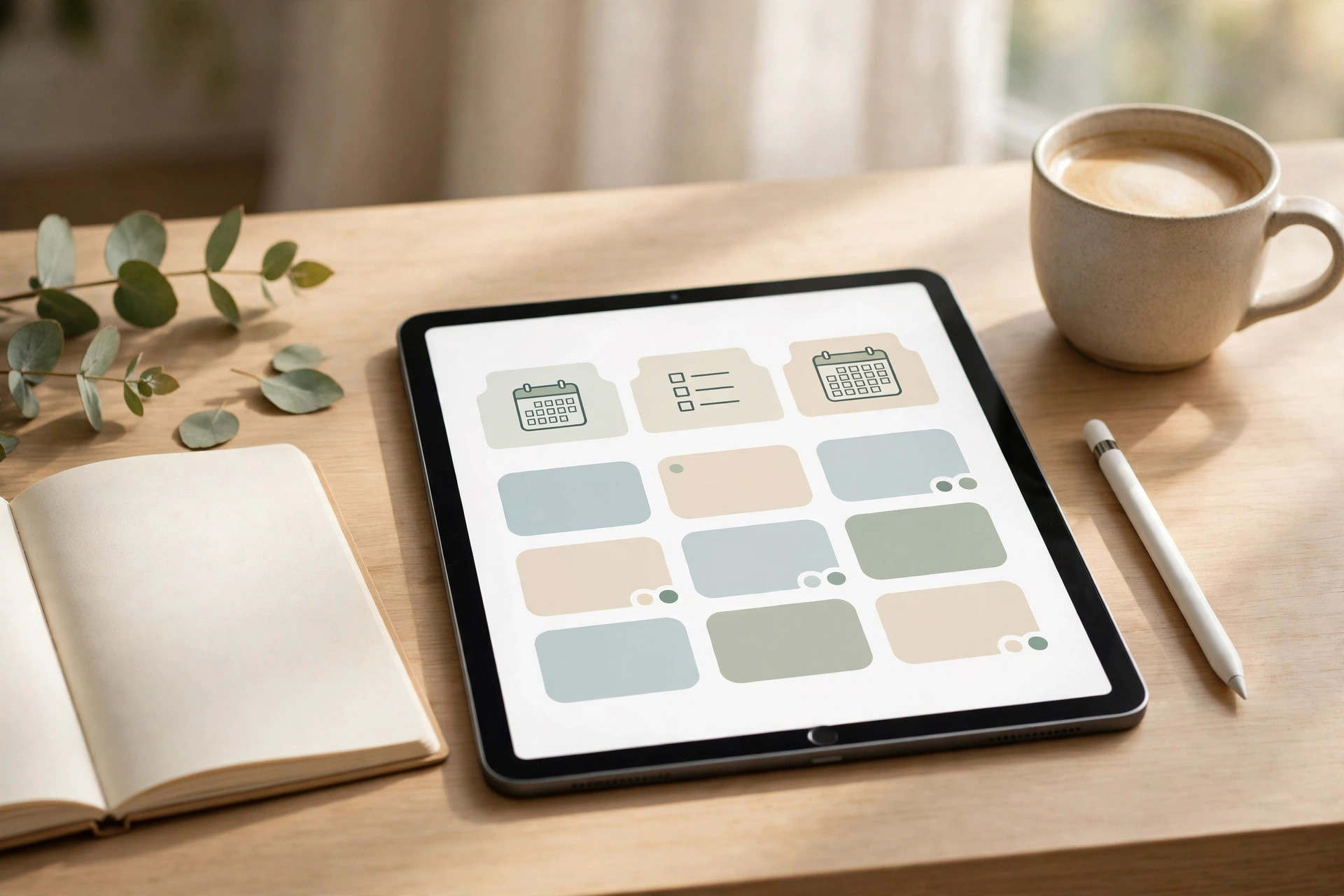
A GoodNotes planner template is a digital planner file with pages that link to each other. Think of it like a paper planner where the tabs work when you touch them. Tap a month tab and you land on that month. Tap a week tab and you land on that week. Tap a day and you are on that day, ready to write.
That is the whole idea. The planner is just a set of pages in the right order, with links on the tabs. When the links are done well, you stop thinking about the planner and start thinking about your day. That is when it starts to help.
Inside, the pages tend to follow a pattern: a year view, then month pages, week pages, and day pages. After that come extras like notes, lists, and blank pages for quick thoughts. You do not need to use all of them. Pick the pages that match your life and leave the rest alone. They will still be there later if you ever need them.
How do hyperlinked tabs actually work?
Picture the side of a paper planner, with little tabs sticking out, one for each month. In a digital planner, those tabs are on the screen. They look like tabs, and they act like buttons. Tap January, see January. Tap the week number, see that week. Tap a single date, see that day.
The links usually run both ways. From a month page you can tap a week or a day. From a day page you can tap back to the week or the month. That two-way movement matters more than it sounds. It means you never get stuck deep inside the planner, hunting for the way back. You can check next Thursday, then jump back to today in two taps.
A tab will take you to a page. It will not fill the page in, move your notes, or warn you about a clash. You still need to write the plan and check it. The link just removes the flipping. That sounds small, but over a year of daily use, all that flipping adds up to lost minutes and small reasons to skip planning. Removing it makes the habit easier to keep.
What do you need before you start?
You need less than most guides suggest: an iPad, the GoodNotes app, a stylus you are happy writing with, and a planner file. You do not need a new case or a set of coloured inks to begin. Start plain, learn what you use, and add extras later only if a real need shows up.
One honest note. If you hate writing on a screen, a digital planner will not fix that. Some people love paper and always will. Paper is cheap to try, easy to see at a glance, and never runs out of battery. A digital planner mainly saves rewriting. When a plan changes, you erase and rewrite in seconds. When a page fills up, you add a fresh copy. If that saving matters to you, digital is worth a try. If it does not, paper is still a good choice.
If you prefer paper over a tablet for this kind of page, a faith planner shows how the same daily shape works on printed pages.
How do you set up a hyperlinked planner on iPad?
Start with a fresh copy of the planner file. Keep the original file somewhere safe, untouched, so you can always start again or make a second copy for a new year. Work on the copy. A planner you have written all over is hard to reset, while a clean original is always ready.
Open the planner in GoodNotes. Take a minute to look at the first page. Most planners open on an index or a year view. From there, tap a month tab and see where it lands. Tap a day inside that month and see if it opens the day page. Tap back to the month. If those three moves work, the links are doing their job and you can move on.
Next, set up the front pages in a way that suits you. On the year view, mark the big dates you already know: holidays, term starts, trips, deadlines. Do not try to fill the whole year. Just the dates that would hurt if you forgot them. The year view is for seeing the shape of the year, not for holding every task.
Then go to the current month. Write in the fixed events for this month and next month: classes, shifts, appointments, birthdays. Use short words. "Mum call 7pm" beats a full sentence. You will read this page fast, often while standing in a kitchen or waiting for a bus, so short and clear wins every time.
After the month, open the current week. This is where the real planning happens. Write the tasks for each day, but keep the list short. Three main tasks per day is plenty for most people. If a day already has five or six things on it, that is a sign the week is overloaded, not a sign you need smaller handwriting. Move something. A planner that shows an impossible day every day teaches you to ignore it, and then it stops helping at all.
Now open today. Write the same three tasks again, in your own words, plus any times that matter. This double writing, month to week to day, is not wasted effort. Each step forces a small decision: does this still belong here, is the time right, can it move? By the time you reach today, the plan has been checked three times and it usually makes sense.
Add a notes page for the week if your planner has one. Use it for things that do not have a date yet: ideas, things to buy, people to call, questions to ask. A notes page stops those loose thoughts from landing on random day pages where you will never find them again. At the end of the week, read the notes page once and move anything that now has a date onto the right day.
What does a Sunday evening setup look like?
Meet Sara. She is a student with classes three days a week, two evening shifts at a cafe, and assignment dates that always seem to arrive in a bunch. On Sunday evening she makes tea, sits on her bed with the iPad, and spends about fifteen minutes setting up the week. She does not do this because she loves planning. She does it because Monday used to ambush her.
Sara starts on the month page. She checks the next two weeks for assignment dates and shift changes. One assignment moved, so she rubs it out on the old date and writes it on the new one. On paper that would leave a mess. Here it takes seconds, and the page still looks clean. That clean page matters to her more than she expected. A messy page made her avoid opening the planner, and avoiding it made Mondays worse.
Then she opens the week page. She writes her classes in first, because those times do not move. Shifts go in next. Then she adds study blocks, but only two: one on Tuesday afternoon and one on Thursday evening. She used to block every free hour for study and then feel bad when she missed most of them. Two honest blocks beat six hopeful ones. The rest of the free time stays free, and extra study is a bonus, not a broken plan.
Next she opens each day, just for Monday to Wednesday at first. She writes the one task that matters most for each day at the top. Monday: send the draft to her study partner. Tuesday: read two chapters before the afternoon class. Wednesday: start the short essay, not finish it, just start it. Small starts are easier to keep than big finishes, and a started essay is much less scary on Thursday than a blank page.
By the end of fifteen minutes, Sara has a week she can actually see. She knows where she needs to be, what matters most each day, and what can wait. Monday still brings surprises, because Mondays always do, but she no longer opens the week feeling lost. That is the test for your own setup too. Not if the planner looks good in a photo, but if Sunday night feels calmer after you use it. If it does, keep the routine. If it does not, change one thing next week, not everything.
Which pages will you really use?
Here is an honest opinion, and it is only about this kind of planner. Most people will only ever use the daily page and the month tabs, and the rest can stay untouched. That sounds like a waste of a big planner file, but it is not. The daily page is where life happens. The month tabs are how you get around. Everything else is backup.
Think about a normal day. You wake up, check today, see three tasks and two times, do them, and cross them off. You do not open a habit tracker. You do not fill in a mood page. You do not review a yearly goals spread before breakfast. Those pages were made for quiet Sundays and fresh starts, not for busy Tuesdays. Using them once a month is plenty. Using them never is also fine.
The month page earns its place because it answers one question fast: what is coming up? You open it on a Sunday, see the next few weeks, and spot the clash before it happens. The week page helps too, especially when shifts or classes move around. But if you had to keep only two views, keep the month for looking ahead and the day for doing the work. That pair covers almost every real need.
So do not feel guilty about blank pages. A blank tracker is not a failed week. It is just a page you did not need that week. Your only job is to open the planner, see today clearly, and close it feeling a bit steadier. If the daily page and the month tabs do that for you, the planner is working, even if many other pages stay empty all year.
If you want a ready-made file to try this with, the GoodNotes Planner on printables is the natural next step after the setup above. It costs $5.99 and has 1,000 hyperlinked A4 pages for GoodNotes and Notability, where tapping tabs jumps to any month, week or day. Remember the point of this section, though: start with the daily page and the month tabs, and let the rest wait until you actually need it.
How do you build a weekly routine that sticks?
A routine sticks when it is short, tied to something you already do, and easy to restart after a missed week. Fifteen minutes on Sunday evening works for many people because Sunday evening already feels like a pause before the week. Tie planning to tea, or to charging the iPad, or to sitting down after dinner. When the cue happens, the planning happens. When you rely on willpower alone, it fades by week three.
Start the routine the same way every week. First, look back. What got done last week? What did not? Move the undone tasks on purpose, or drop them on purpose. Do not just copy them forward week after week without thinking. A task copied four times without progress is telling you something. Either it needs a smaller first step, or it needs a date with another person, or it does not matter as much as you thought.
Second, look ahead. Check the next two weeks on the month page, not just next week. Two weeks of view catches the clash early: the assignment due the same week as a shift change, or the trip that eats a study weekend. Catching it two weeks out gives you time to move things calmly. Catching it the night before gives you stress and a late-night rewrite.
Third, write the week. Classes, shifts, appointments first. Then the three main tasks per day, or fewer on busy days. Then one notes page for loose ends. That is the whole routine. It should fit on one week spread and one notes page. If your Sunday routine needs five pages and a colour key, it is too big. Shrink it until you can do it half asleep, because some Sundays you will be tired, and a tired you still needs a plan for Monday.
Fourth, plan a midweek check. Wednesday evening, two minutes. Open the week page, cross off what is done, move what slipped, and check Thursday and Friday once. This tiny check stops Friday from becoming a pile of forgotten tasks. It also stops the common trap where Monday to Wednesday go well, then Thursday falls apart because no one looked at the plan again.
The same method works for big dated projects, not just normal weeks. If you are planning something with many steps and a fixed date, like a wedding, the month-to-week-to-day habit is exactly what keeps it calm. A clear checklist helps there too, and the wedding planning checklist printable shows how a long list of dated jobs can sit in the same kind of plan without taking over every day page. You still plan one week at a time. The big project just gives those weeks a clear direction.
What if taps, writing, or pages feel wrong?
Most problems with a digital planner are small and easy to fix, once you know which kind of problem you have. Start by naming it. Is it a tap problem, a writing problem, or a page problem? Each one has a different fix, and guessing wastes time.
If taps land on the wrong page, slow down for a day and watch where your finger lands. Tabs near the edge need a calm tap, not a swipe. If you keep opening the wrong month, try holding the iPad still on a table for a few taps instead of holding it in one hand. A moving screen makes small tabs harder to hit. Also check if you are in a zoomed view. A zoomed page shifts the tabs, and taps land where the tab used to be, not where it looks now. Zoom out to the full page, then tap.
If writing feels slippery or strange, try a different pen thickness first. A very thin pen on a smooth screen can feel like writing on glass, and that puts many people off. A slightly thicker pen gives more grip in how it looks, even though the screen feels the same. Also try writing slower for one day. Fast writing on a screen often looks worse than fast writing on paper, because the screen does not slow your hand down the way paper does. Slow, clear letters for a week will tell you if the problem was speed or setup.
If a page feels wrong, ask if it is the wrong page for the job. A day page packed with notes, lists, and ideas will always feel cramped, because that is not what a day page is for. Move the notes to a notes page. Move the long list to a list page. Keep the day page for today only: times, tasks, and one or two short notes. When each page holds only its own job, every page feels easier.
If a link seems to go nowhere, or a tab does not respond, go back to the index or year page and try again from there. A fresh start from the front often clears a confused jump. If the same tab fails every time, the file itself may have a weak link, and that is worth checking with the seller or the help pages for the app. The GoodNotes support pages have how-to guides and answers for the app itself, and they are the right place to check app questions rather than guessing or following random videos that may show an older version.
A one-week page routine you can copy
Here is a plain routine you can use with any planner, free or paid, digital or paper. Copy it as it is for one week, then change only what did not fit.
On Sunday evening, open the month page and look at the next two weeks. Mark any date that would hurt if forgotten. Then open the week page and write fixed times first, then three main tasks per day, then loose ends on the notes page. Close the planner. That is Sunday done.
On Monday morning, open today before you check messages. Read the three tasks and the times. Pick the one task that matters most and do it first if you can. Cross tasks off as you finish them, without rewriting the page to look neat. A crossed-off list is a good list. It shows work done, and that visible progress helps on days when energy is low.
On Tuesday and Wednesday, repeat the morning check: what is today, what must not be missed? If a new task arrives, write it on today or on the notes page at once. On Wednesday evening, take two minutes to check Thursday and Friday. Move anything that slipped, and check if Friday already looks too full. Moving a task on Wednesday is calm. Moving it on Friday morning is a rush.
On Friday, close the week on purpose. Read the notes page once. Move anything left to next week with a real date, or drop it on purpose. A week that ends with a clear close feels finished, and a finished week makes Sunday planning feel lighter, because you are not carrying last week's mess into next week. On Saturday, leave the planner alone if you can. A day off from planning is part of planning well. If a thought pops up, jot it down elsewhere and move it to the planner on Sunday. Rest, then plan, then rest again. That rhythm is what keeps the habit alive for months.
Sunday-evening setup checklist
Use this checklist every Sunday. Tick each step in your head as you do it, and stop when you reach the end. Do not add steps in the first month. The checklist is short on purpose.
- Open the month page and mark big dates for the next two weeks.
- Open the week page and write fixed times first: classes, shifts, appointments.
- Write three main tasks per day, fewer on busy days.
- Open the notes page and write loose ends: calls, buys, ideas with no date yet.
- Check for clashes: two fixed times at once, or a day with too many tasks.
- Move one task if a day looks impossible, and note the new date.
- Open today and write tomorrow's top task at the top of the page.
- Test the tabs once: jump to next month, back to this week, back to today.
- Close the planner and leave it ready for Monday morning.
Where to go next
You now have the full setup: how the tabs work, how to build the week, which pages matter most, and a checklist you can use tonight. The next step is to pick a planner whose day page feels good and whose tabs are easy to hit, then use it for one real week before judging it.
A good place to start is the GoodNotes Planner on printables. It costs $5.99 and has 1,000 hyperlinked A4 pages for GoodNotes and Notability, where tapping tabs jumps to any month, week or day. That is a lot of pages, but remember: you will probably live on the daily page and the month tabs, and the rest can wait. What matters is if you open it on Monday morning.
Go to the GoodNotes Planner on printables next, and set up your first week tonight while the steps are still fresh.
Try it on MerryHub
- Printables
- Printable Daily Planner Template
- Business Planner Printable
- Wedding Planning Checklist Printable